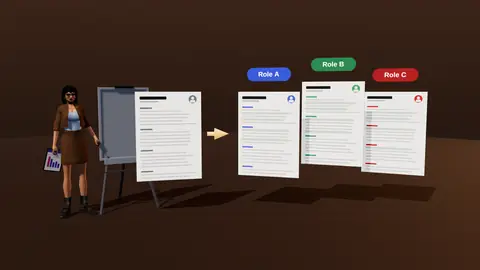
Browser extension that reads the vacancy and helps fill applications
Applying through forms is repetitive: the same name, history and answers, again and again. The JobAny browser extension reads the vacancy page, brings your resume context to it and fills fields for you, and you stay in control: you confirm the final submit.
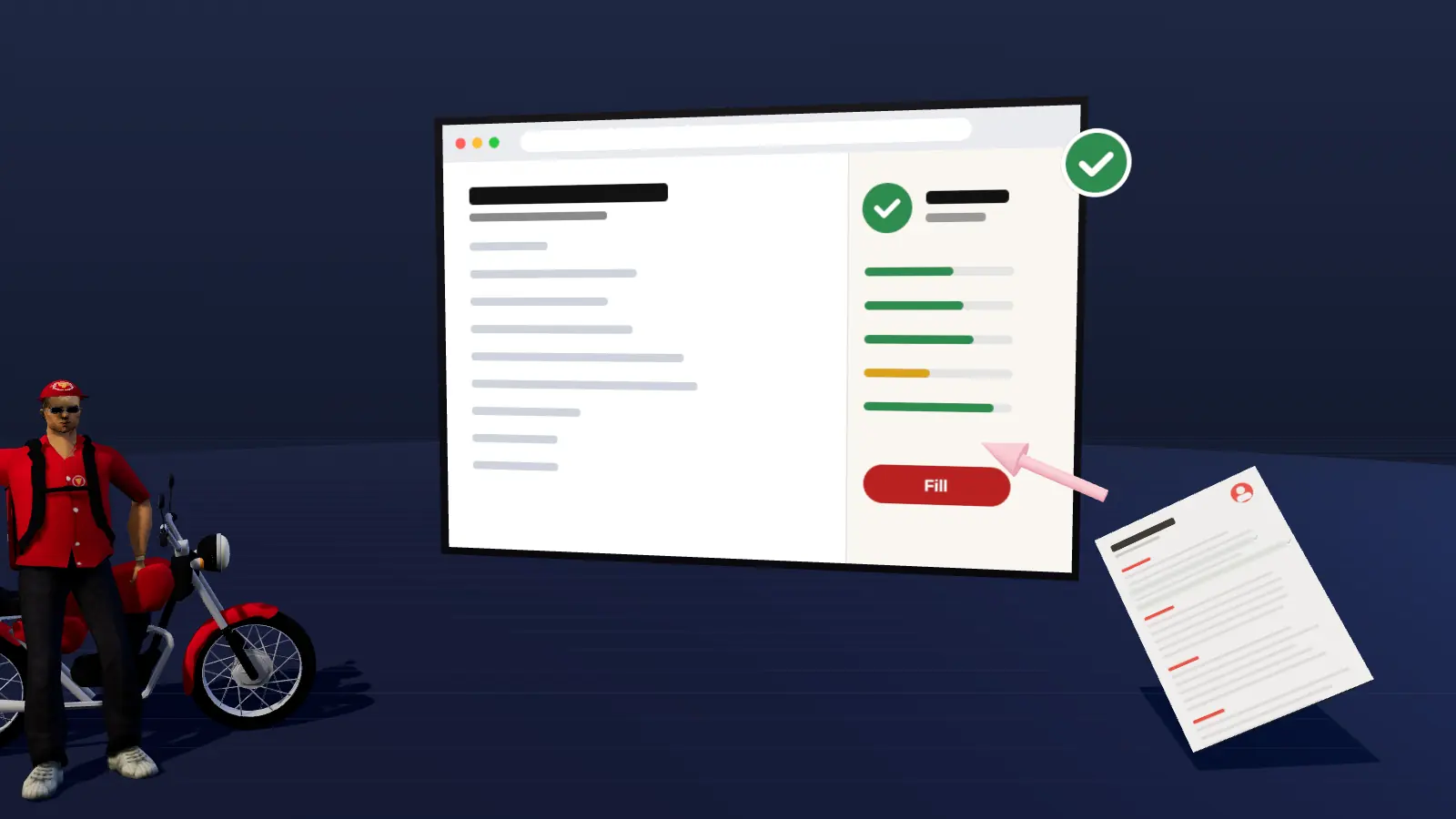
- Reads the vacancy on the page you are viewing.
- Fills application fields from your profile and resume.
- You review every field and confirm the submit.
- Can save the vacancy to your tracker.
What it does on a vacancy page
- Reads the job posting on the open page.
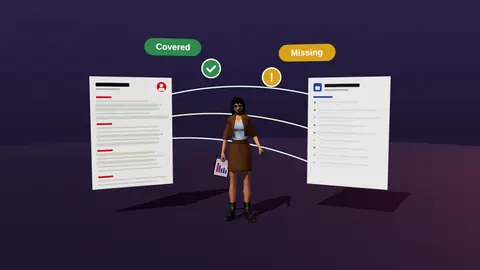
- Shows how your resume matches its requirements.
- Fills common application fields from your profile.
- Waits for you to review, edit and confirm.
- Saves the vacancy and version to your tracker.
You stay in control
Nothing is submitted without your confirmation. Review answers, especially salary, authorisation and screening questions, which should be truthful and considered.
Do not let any tool answer legal or eligibility questions for you without checking them yourself.

Why it saves time
- No retyping the same history on each form.
- One-click save of vacancies for the tracker.
- A quick match view before you invest time applying.
Tailor the resume first with tailoring, then use the extension to apply.
Paste a job link, add your resume and get a requirement-by-requirement report.
A typical session
- Open a vacancy page and click the extension.
- Review the match view and decide whether to apply.
- Let it fill the fields; check each one.
- Answer screening questions yourself.
- Submit manually and save the vacancy to the tracker.
Fields you should always review
- Salary expectations.
- Work authorisation and location.
- Notice period and start date.
- Any question with legal or eligibility meaning.
Safety tips
- Install only from the official store listing.
- Review requested permissions.
- Never share passwords with the extension.
- Remove it if you stop using it.
What it reads and what it does not
On a job page the extension reads the posting text so it can show your match and prefill fields. It does not read unrelated tabs, and it does not submit anything without you. If a page asks for sensitive data, you fill it yourself. Review permissions at install, and remove the extension if you no longer need it.
Making forms less painful
- Keep your profile data current: contact details, work history, links.
- Prepare reusable answers to common questions, then adapt each.
- Upload the tailored resume for each vacancy, not a generic one.
- Check dropdowns and checkboxes after prefill.
When to apply manually
For roles you really want, take extra time: write a tailored cover note, add a referral and read each question carefully. Use the extension to save time on routine fields, not to replace judgement on important applications.
Setting up the extension safely
- Install only from the official store listing.
- Review the permissions requested.
- Keep your profile data accurate and minimal.
- Sign out on shared computers.
A short routine per application
- Open the job page and check the match.
- Prefill fields and read every answer.
- Attach the tailored resume.
- Submit yourself and log it.
Where this fits in the full JobAny workflow
A strong application is built in a sequence, and each step feeds the next. 1. Find roles with the job search agent or the channels in where to find jobs. 2. Read the vacancy properly using how to read a job description. 3. Analyse your resume against it with resume analysis. 4. Tailor the top of the page with resume tailoring. 5. Add a short cover note if it helps. 6. Find a warm route through warm intros. 7. Apply and log it in the tracker. 8. Follow up using follow-up methods. Skipping a step is fine when the role does not justify the effort, but knowing the sequence helps you decide where your time pays off most. Start with one role you genuinely want and run the whole path once; the second time it will take a fraction of the time.
Key terms explained
- ATS
- Applicant tracking system, software employers use to collect, store and search applications.
- Parsing
- The step where software reads your file and sorts the text into fields such as name, employers and dates.
- Tailoring
- Adjusting emphasis and wording of the same true facts for one specific vacancy.
- Requirement coverage
- How many of a vacancy's main requirements your resume proves with evidence.
- Master resume
- Your complete private version with every role and result, from which you build shorter tailored copies.
- Warm introduction
- A recommendation or message passed through someone who already knows both sides.
- Reply rate
- Replies divided by applications sent, the clearest signal of whether your approach works.
Knowing these terms makes it easier to read job ads, compare tools and judge advice you find online, because many claims depend on what exactly is being measured.
Availability and permissions
The extension asks only for permissions needed to read the pages you use it on. See the privacy page for details.
Try it on your own resume
Start costs $1 as a one-time payment, with no subscription. Add your resume and a vacancy link and see the result.
Frequently asked questions
Does it submit applications automatically?
No. You review and confirm before submitting.
Which sites does it work on?
Common job posting and application pages; coverage evolves.
Is it free?
See the pricing page.
Does it read all my browsing?
It reads the page you use it on, not your general browsing.
Can I turn it off?
Yes, disable or remove it in your browser.
Does it work on every job site?
Coverage depends on the page structure; common application pages are supported.
Can it upload my resume file?
It helps with fields; follow the on-screen steps for file uploads.
How do I install it?
See the extension install page for the steps.
Does it work in other browsers?
See the install page for supported browsers.
Can it handle multi-page forms?
It helps with the fields on each page; you move through and confirm.
Does it store my answers?
Profile data is stored per the privacy policy.
Keep reading