Export your resume as a clean PDF or DOCX
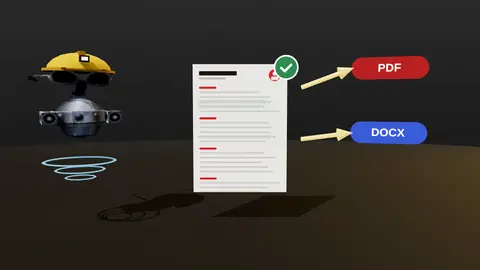
A strong resume can be ruined by a bad export: scrambled text, missing fonts, broken layouts. JobAny exports a plain single-column resume as a text PDF or an editable DOCX so the file looks the same and parses in the right order.
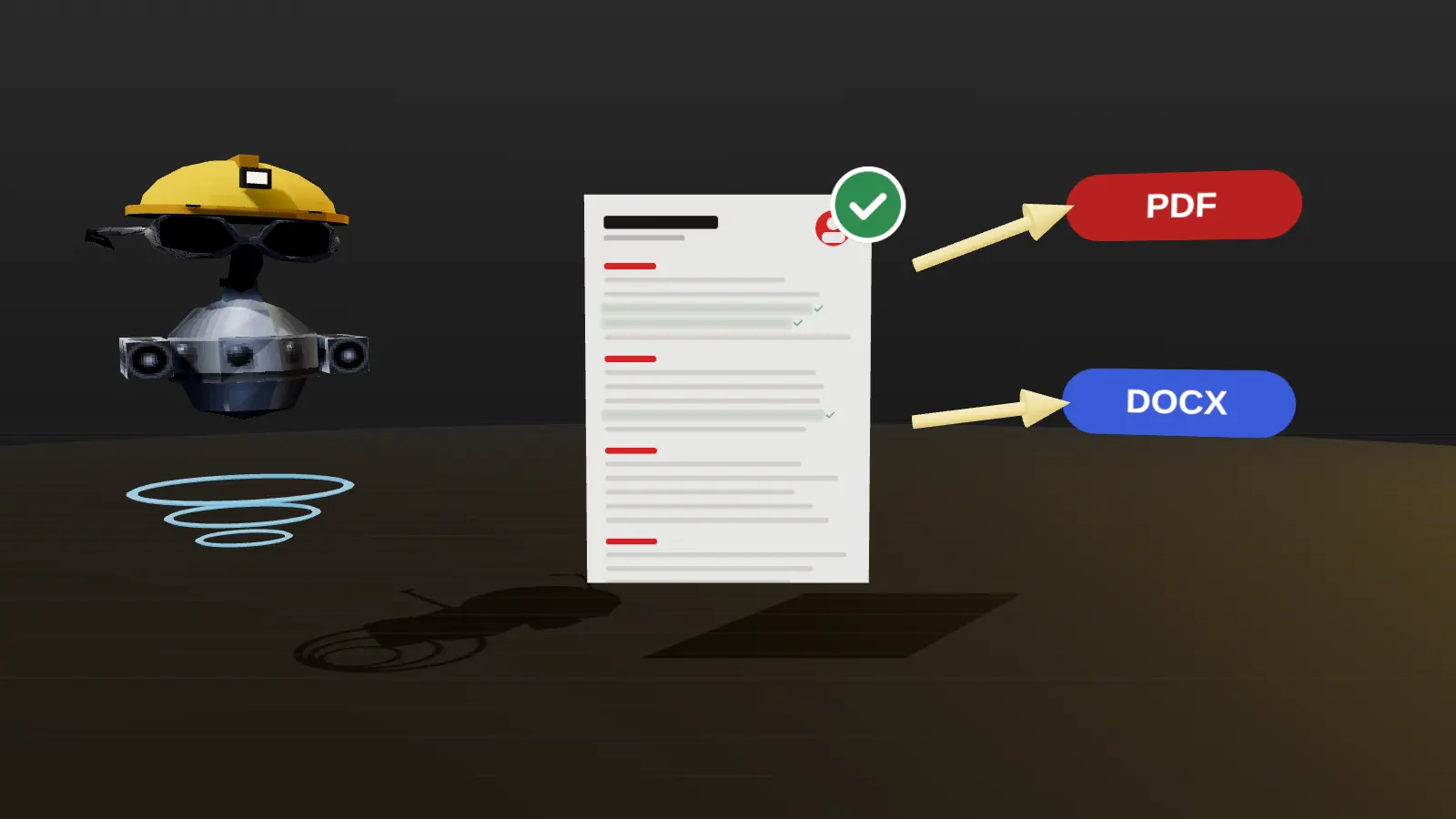
- Text-based PDF: consistent look, selectable text.
- DOCX: editable when an employer asks for Word.
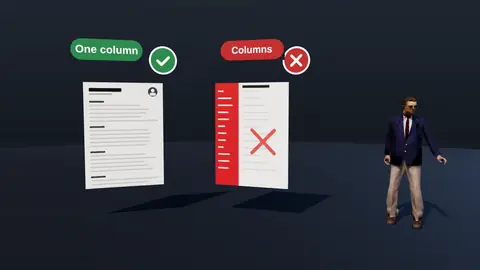
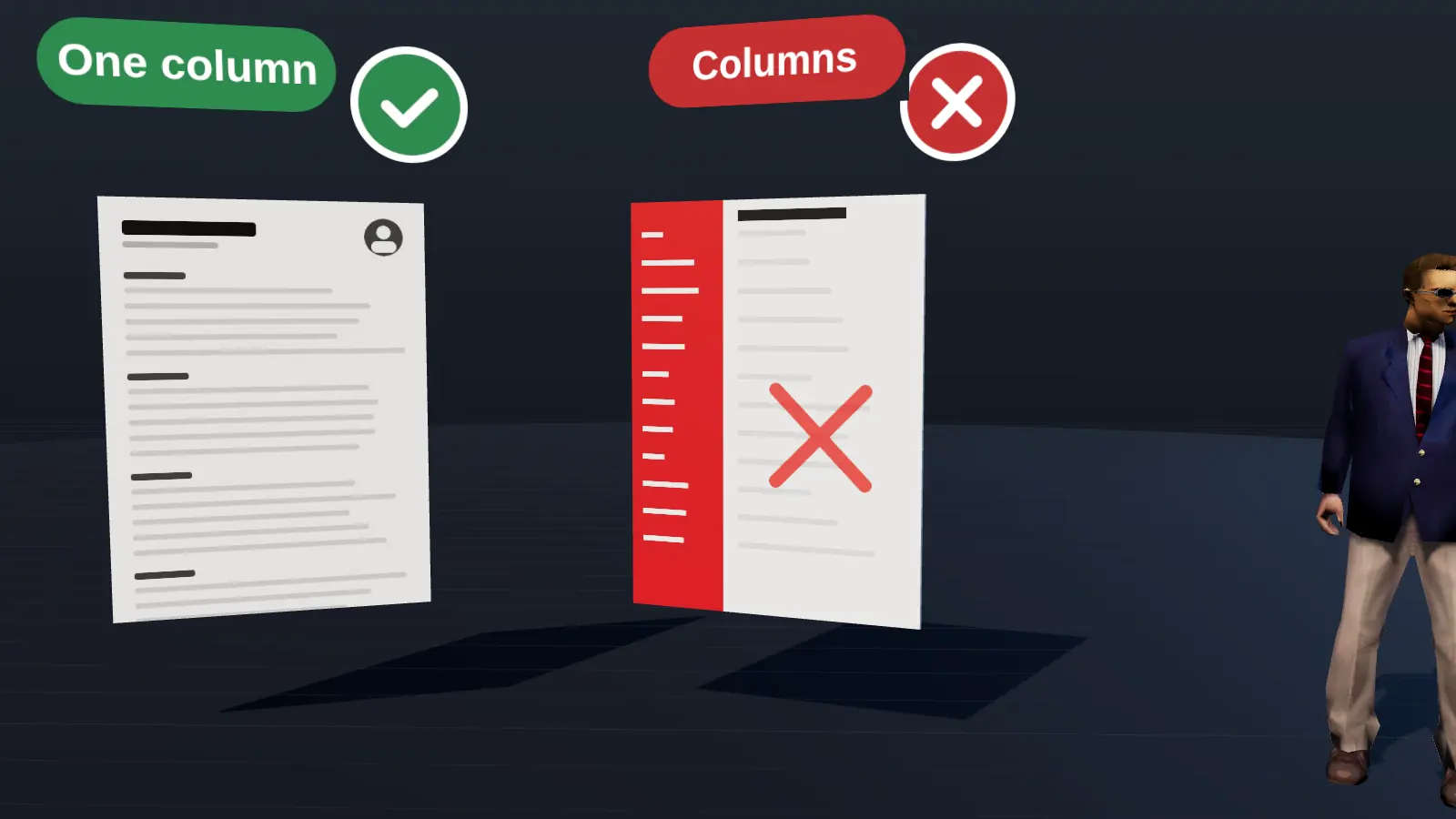
- Single-column layout without tables or icons.
- Sensible file names and standard fonts.
Which format to choose
| Situation | Use |
|---|---|
| Default, portal accepts PDF | |
| Employer asks for Word | DOCX |
| Recruiter wants to edit or add notes | DOCX |
| Email attachment |
More in PDF or DOCX.
What makes the export clean
- Real text, never an image.
- One column in logical reading order.
- Standard section headings.
- Consistent dates and bullets.
- Contact details in the page body.
Check before you send
- Open the file and read it once.
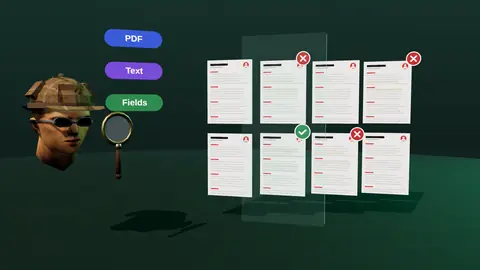
- Select all text and paste into a plain editor to check the order.
- Name it Firstname-Lastname-Role.pdf.
- Keep a copy of each tailored version.
Paste a job link, add your resume and get a requirement-by-requirement report.
Naming and versioning
- Firstname-Lastname-Role.pdf for the file you send.
- Keep a folder per active application with the exact version sent.
- Do not add words like final or v7 to the file name.
Quick quality test
- Open the PDF and zoom to 100%.
- Select all and copy into a plain text editor.
- Check that headings, dates and bullets come out in order.
- Print preview to see page breaks.
When the portal asks for plain text
Some forms ask you to paste text. Use the copied text from your PDF, remove odd characters, and keep headings on their own lines.
Pre-send checklist
- Open the exported file and scroll through all pages.
- Check page breaks: no role split awkwardly.
- Copy all text into a plain editor and confirm the order.
- Verify links are clickable and correct.
- Confirm the file name and keep a copy in your version folder.
Why a clean layout beats a clever one
A creative layout may look striking on your screen but fail on a recruiter's phone, a printed page or a parser. A clean layout is predictable everywhere. If you want a designed version, keep it as an optional extra and send the plain one to portals.
DOCX tips
- Use built-in styles for headings rather than manual formatting.
- Avoid text boxes and floating shapes.
- Turn off tracked changes and remove comments.
- Save a final PDF copy as well for your records.
PDF or DOCX: which to send
Send PDF unless the employer asks for Word, because it preserves layout. Some portals prefer DOCX for parsing. When in doubt, follow the instruction in the vacancy and keep both versions ready.
File naming and versions
Name files clearly, for example Name-Surname-Role.pdf. Avoid words like final-v7. Store versions in one folder and record in the tracker which file went to which employer.
Where this fits in the full JobAny workflow
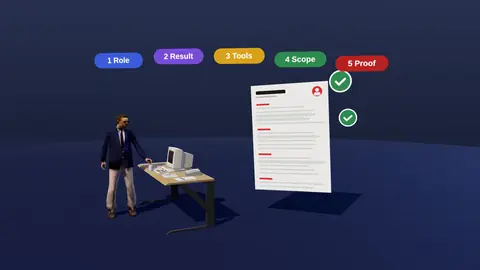
A strong application is built in a sequence, and each step feeds the next. 1. Find roles with the job search agent or the channels in where to find jobs. 2. Read the vacancy properly using how to read a job description. 3. Analyse your resume against it with resume analysis. 4. Tailor the top of the page with resume tailoring. 5. Add a short cover note if it helps. 6. Find a warm route through warm intros. 7. Apply and log it in the tracker. 8. Follow up using follow-up methods. Skipping a step is fine when the role does not justify the effort, but knowing the sequence helps you decide where your time pays off most. Start with one role you genuinely want and run the whole path once; the second time it will take a fraction of the time.
Key terms explained
- ATS
- Applicant tracking system, software employers use to collect, store and search applications.
- Parsing
- The step where software reads your file and sorts the text into fields such as name, employers and dates.
- Tailoring
- Adjusting emphasis and wording of the same true facts for one specific vacancy.
- Requirement coverage
- How many of a vacancy's main requirements your resume proves with evidence.
- Master resume
- Your complete private version with every role and result, from which you build shorter tailored copies.
- Warm introduction
- A recommendation or message passed through someone who already knows both sides.
- Reply rate
- Replies divided by applications sent, the clearest signal of whether your approach works.
Knowing these terms makes it easier to read job ads, compare tools and judge advice you find online, because many claims depend on what exactly is being measured.
Keep a simple record of what you changed
Whatever you decide, keep a short note of each change and the reply rate that followed: what you edited, the date, how many applications went out and how many answers came back. After three or four weeks the pattern is usually obvious, and you stop guessing about what works. This small habit also protects you from changing too many things at once, which makes it impossible to learn anything from the results. Review the note every Sunday and choose one adjustment for the coming week.
Part of the flow
Build in the resume builder, tailor to the vacancy, run the readability check, then export.
Try it on your own resume
Start costs $1 as a one-time payment, with no subscription. Add your resume and a vacancy link and see the result.
Frequently asked questions
Is the PDF text selectable?
Yes, it is a text-based PDF.
Can I edit the DOCX?
Yes, in Word or compatible editors.
Does the layout change between formats?
Both use the same clean layout.
Are the fonts safe?
Standard fonts are used for compatibility.
How many versions can I export?
As many as you create.
Can I export both at once?
Export each format when you need it.
Why does my PDF look different in another viewer?
Text PDFs with standard fonts render consistently; check for custom fonts.
Can I add a photo?
The clean template is text-first and does not require a photo.
Can I edit the PDF afterwards?
Edit in the builder and export again.
Are hyperlinks preserved?
Yes, links to LinkedIn or portfolios stay clickable.
Does the export include a watermark?
See the pricing page for plan details.
Keep reading